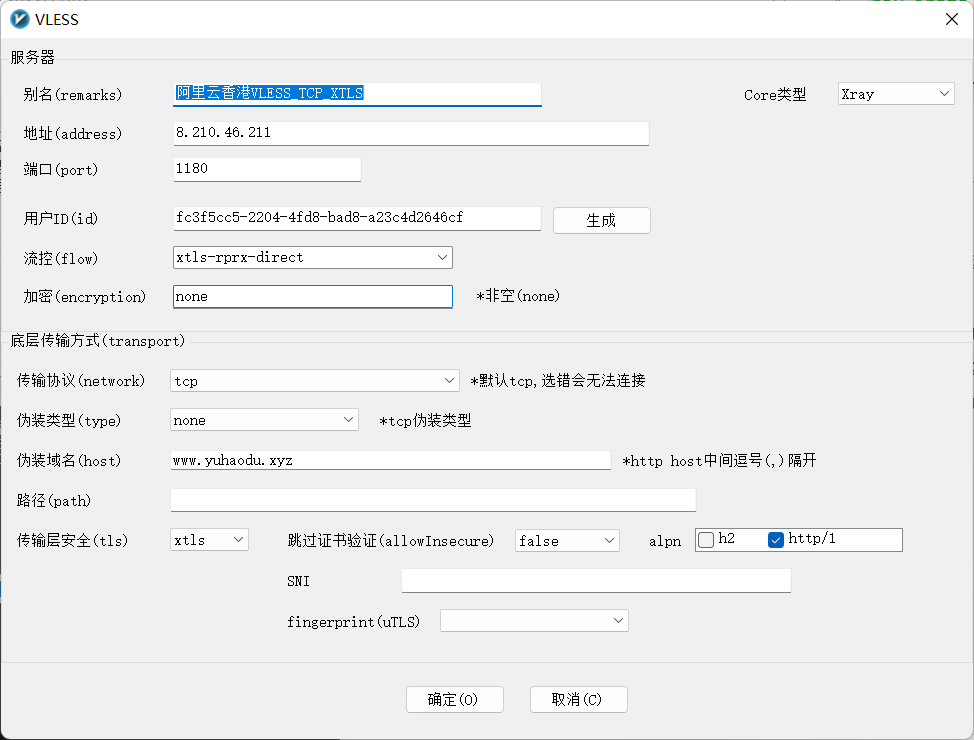
V2ray configuration
VPS 搭建 Xray
<1> 准备工作
1. 购买一台VPS (阿里云香港轻量应用服务器)
- 这里安装的是Ubuntu20.04版本
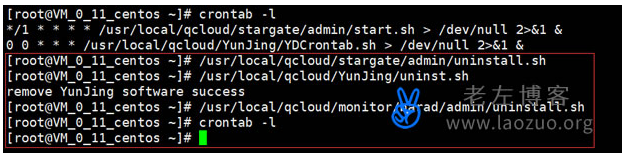
- 最好卸载监视 (如有)

2. 开启Ubuntu 20.04 自带BBR加速
# 修改系统变量
echo net.core.default_qdisc=fq >> /etc/sysctl.conf
echo net.ipv4.tcp_congestion_control=bbr >> /etc/sysctl.conf
# 保存生效
sysctl -p
# 执行
sysctl net.ipv4.tcp_available_congestion_control
# ---结果类似这样
# sysctl net.ipv4.tcp_available_congestion_control
# net.ipv4.tcp_available_congestion_control = reno cubic bbr
# ---

lsmod | grep bbr
# tcp_bbr                24576  3
3. Ubuntu 20.04安装Nginx
sudo apt update
sudo apt install nginx
sudo systemctl status nginx

systemctl start nginx
nginx -t # 查看Nginx
浏览器输入VPS 的 IP地址,出现Nginx的欢迎界面表示配置成功
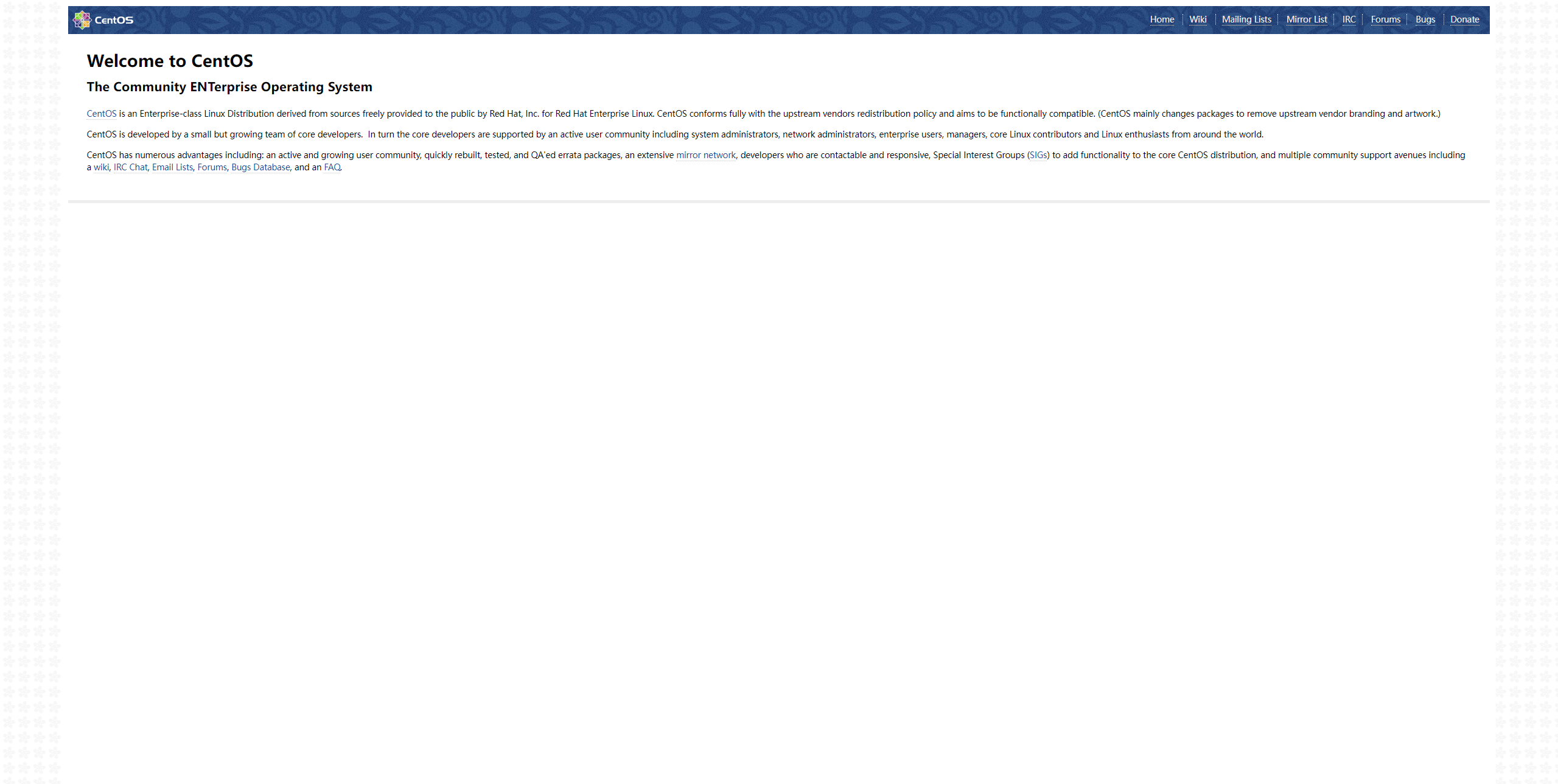
可替换 /var/www/html 文件夹 from https://github.com/DuYooho/VPS_transfer
<2> 绑定域名和VPS IPV4 Address
1. 访问 https://www.namesilo.com/ 并登录
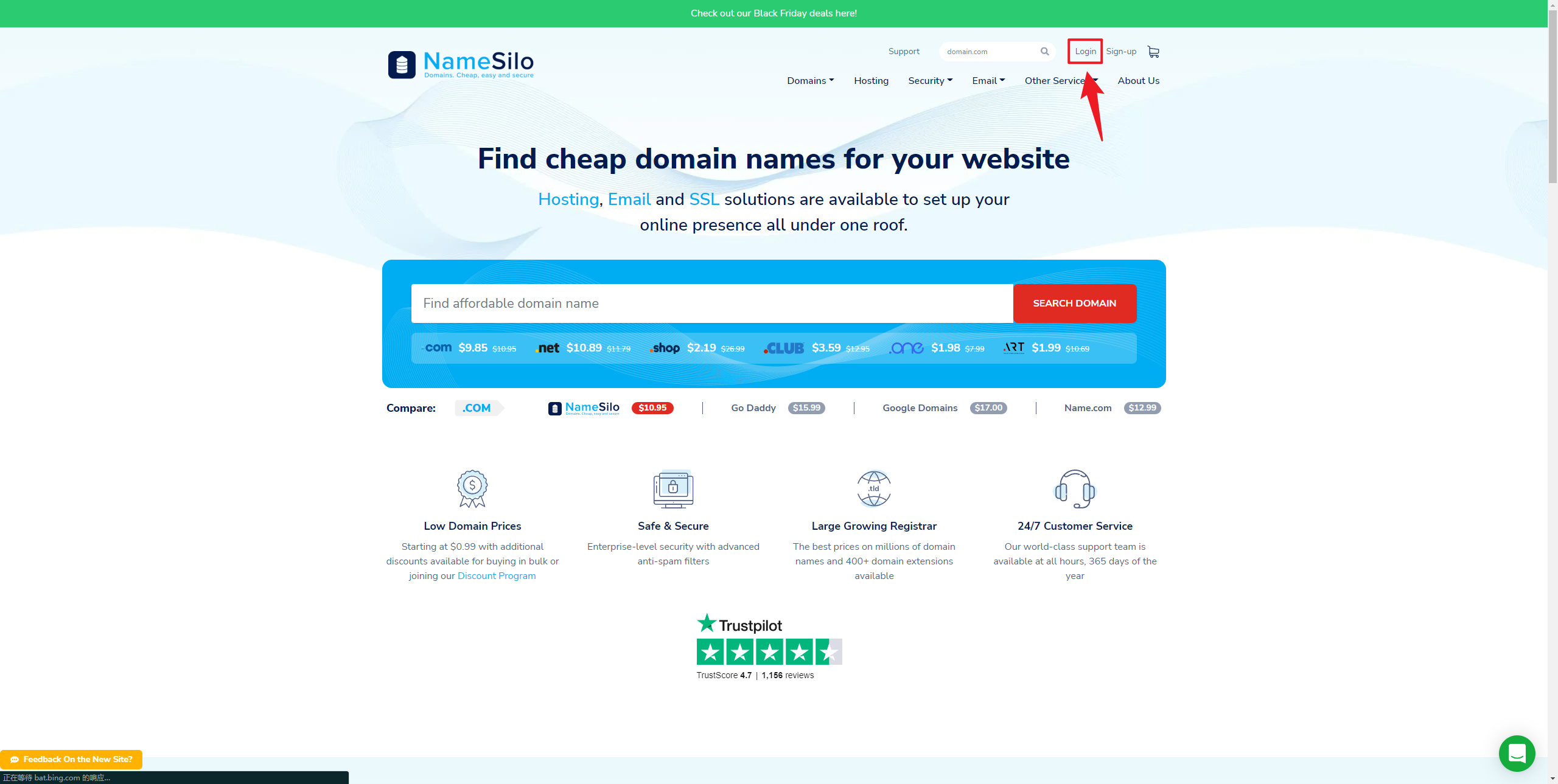
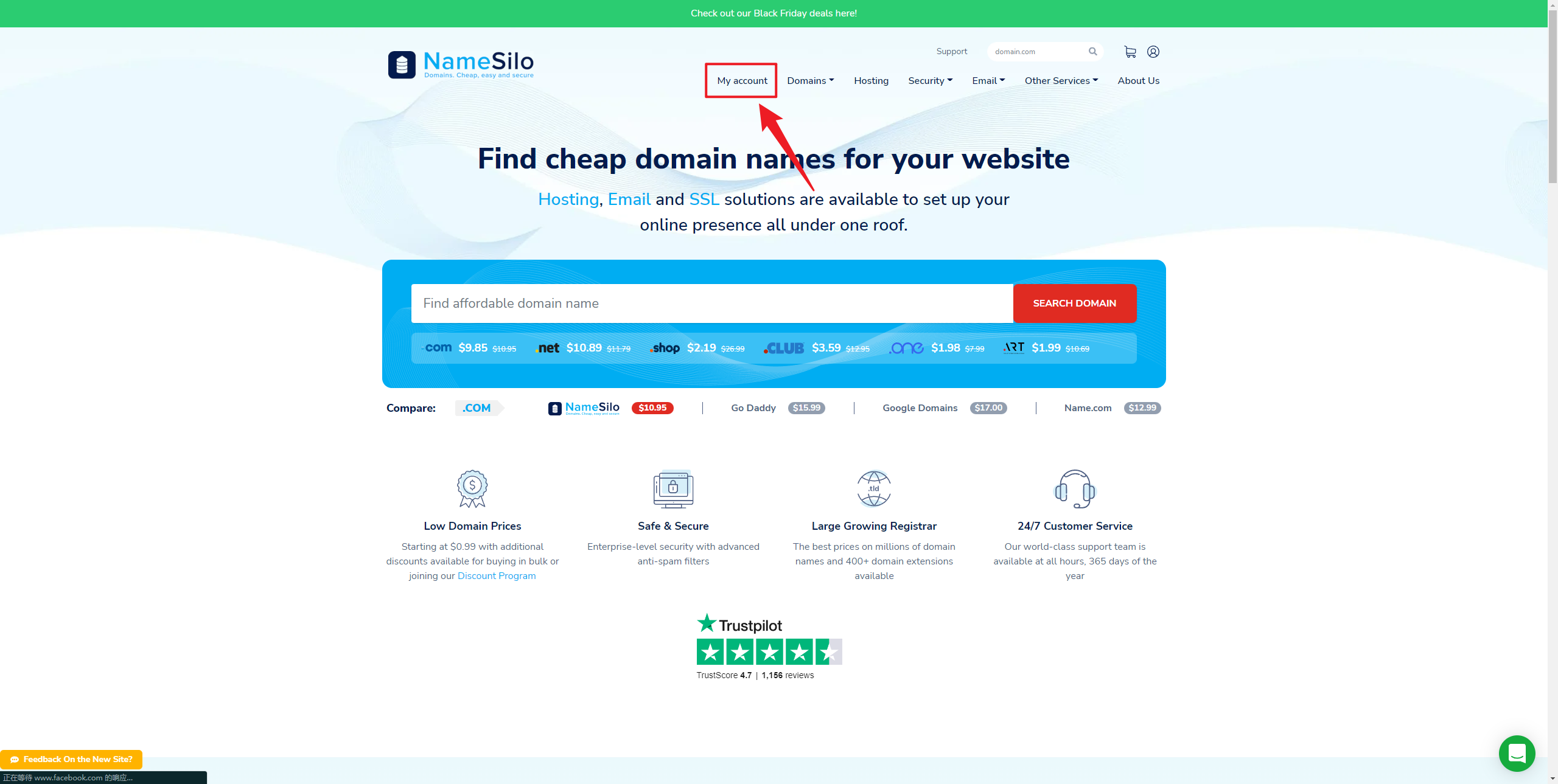
2. 点击 My account
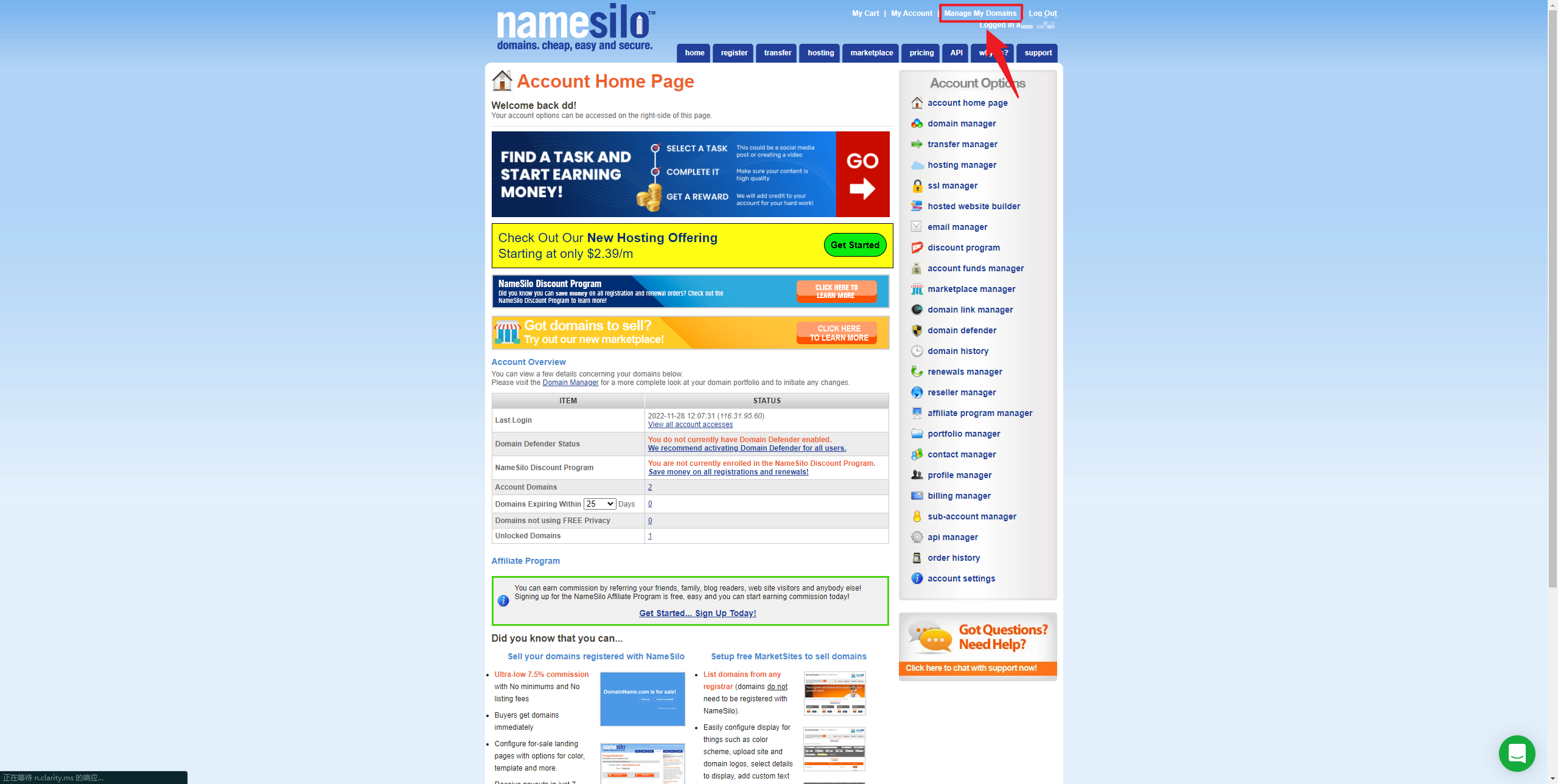
3. 点击 Manage My Domains
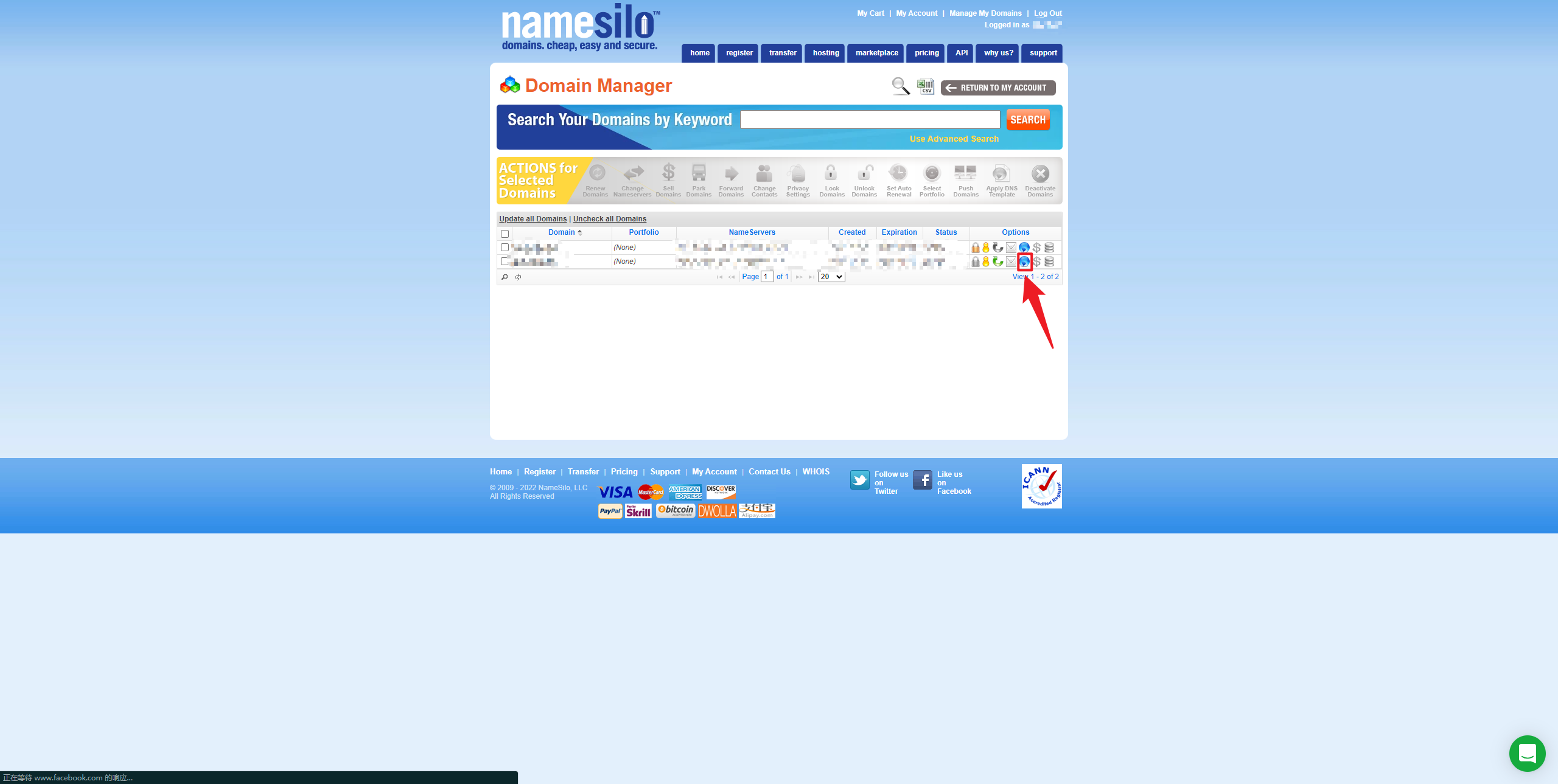
4. 选择一个域名,点击如图所示图标 Manage DNS
5. 删除所有默认解析
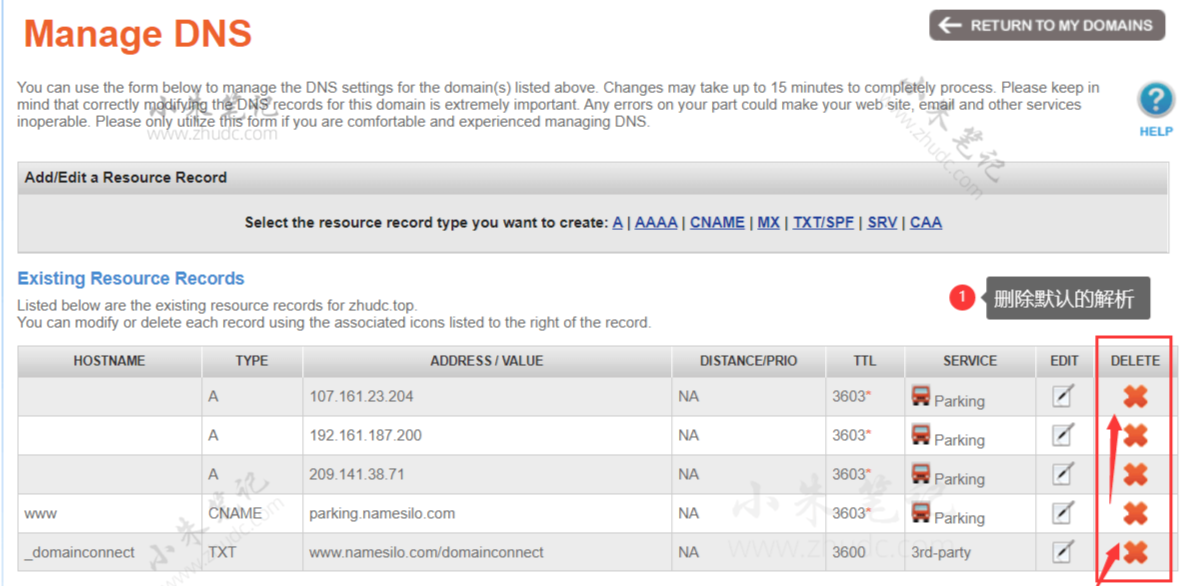
6. 点击添加A记录
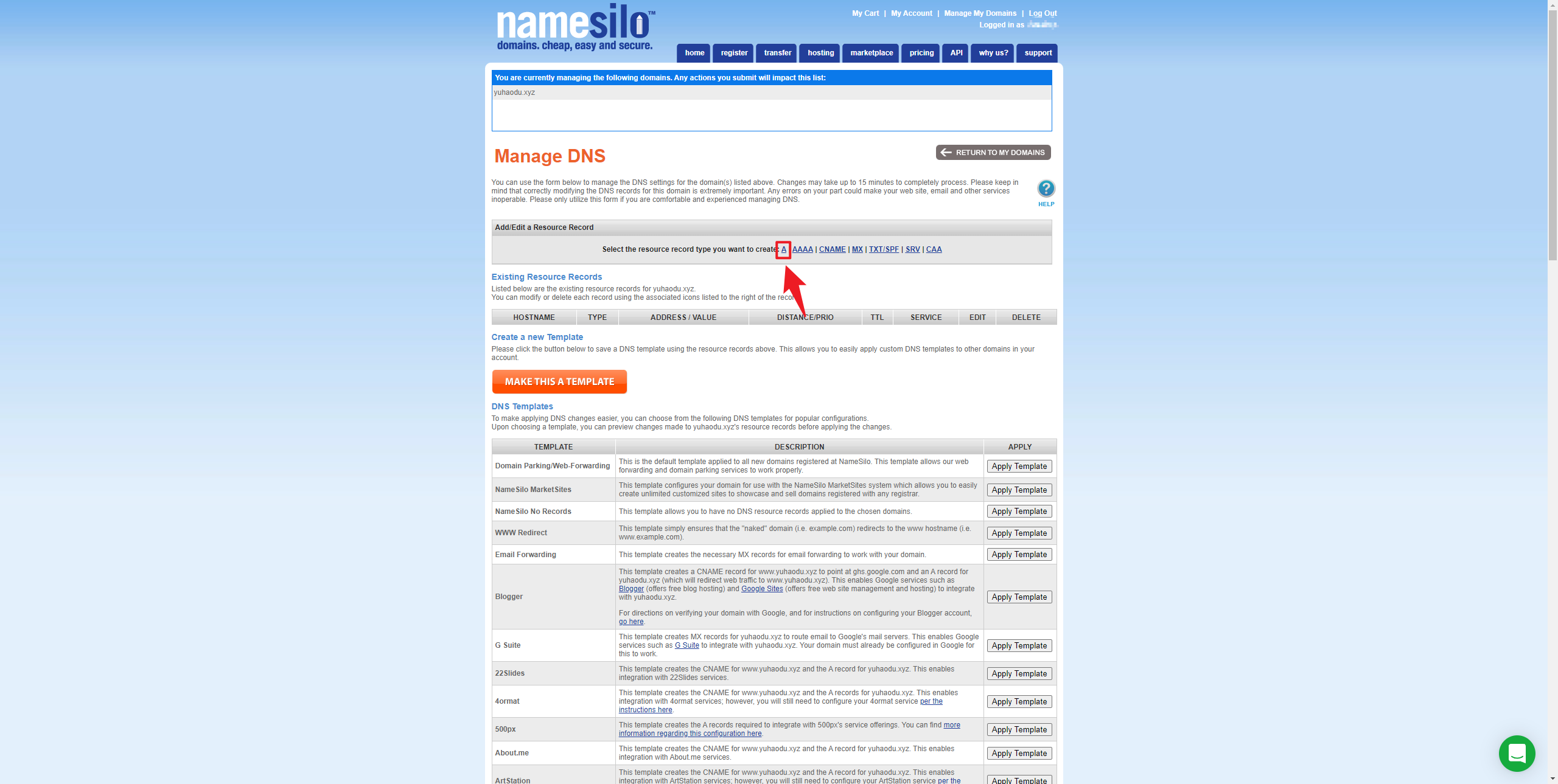
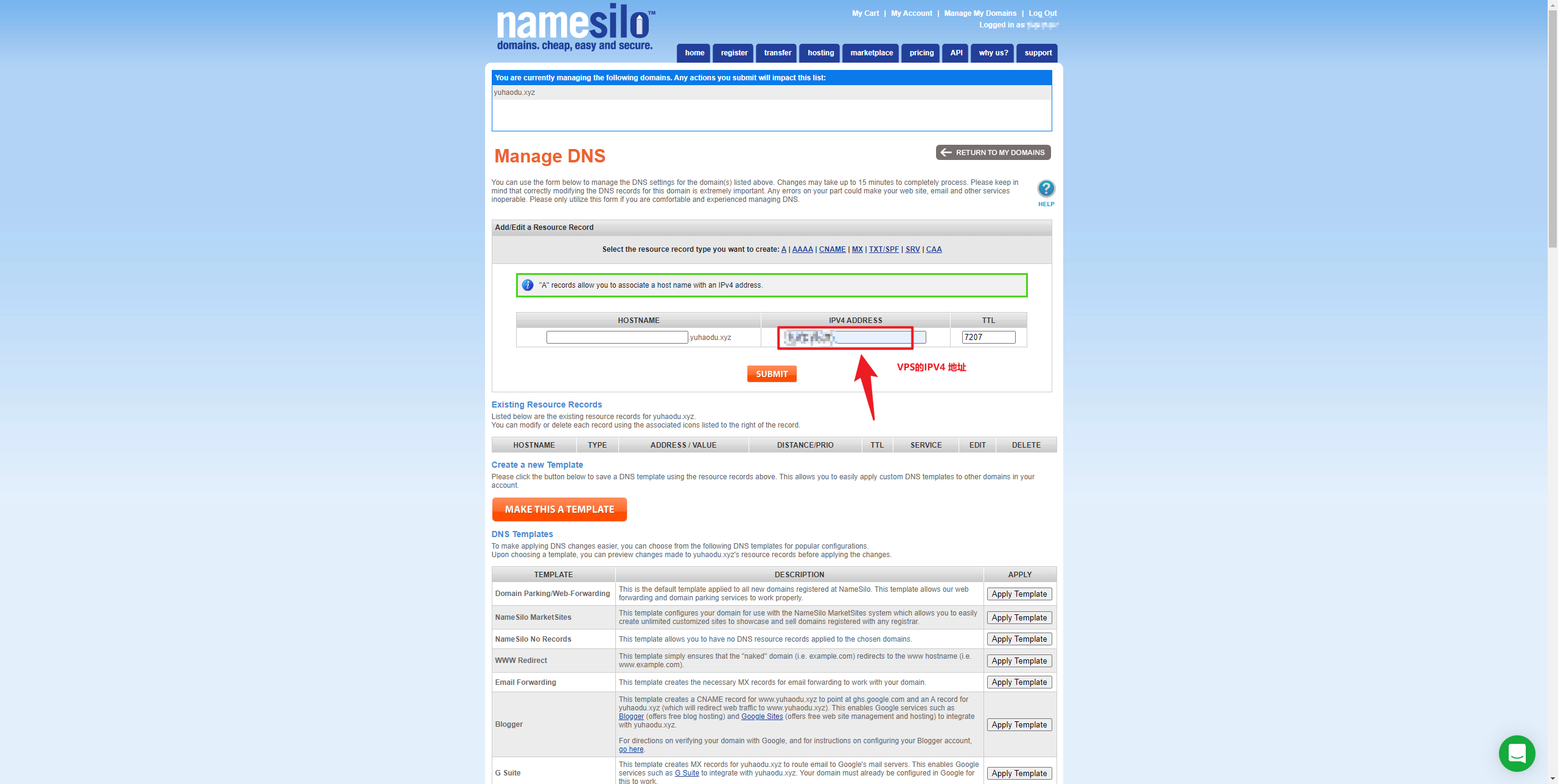
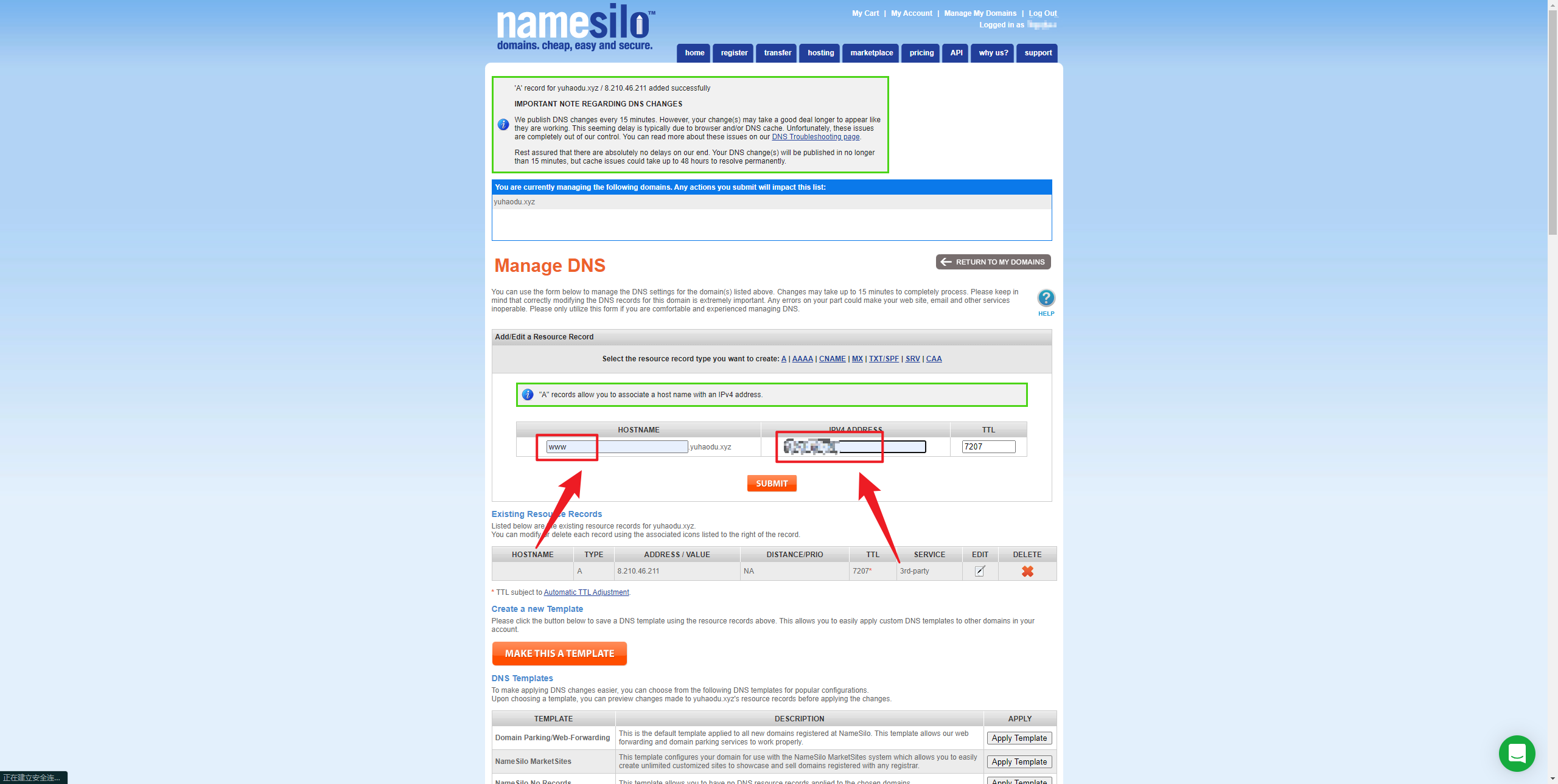
7. 添加两条A记录
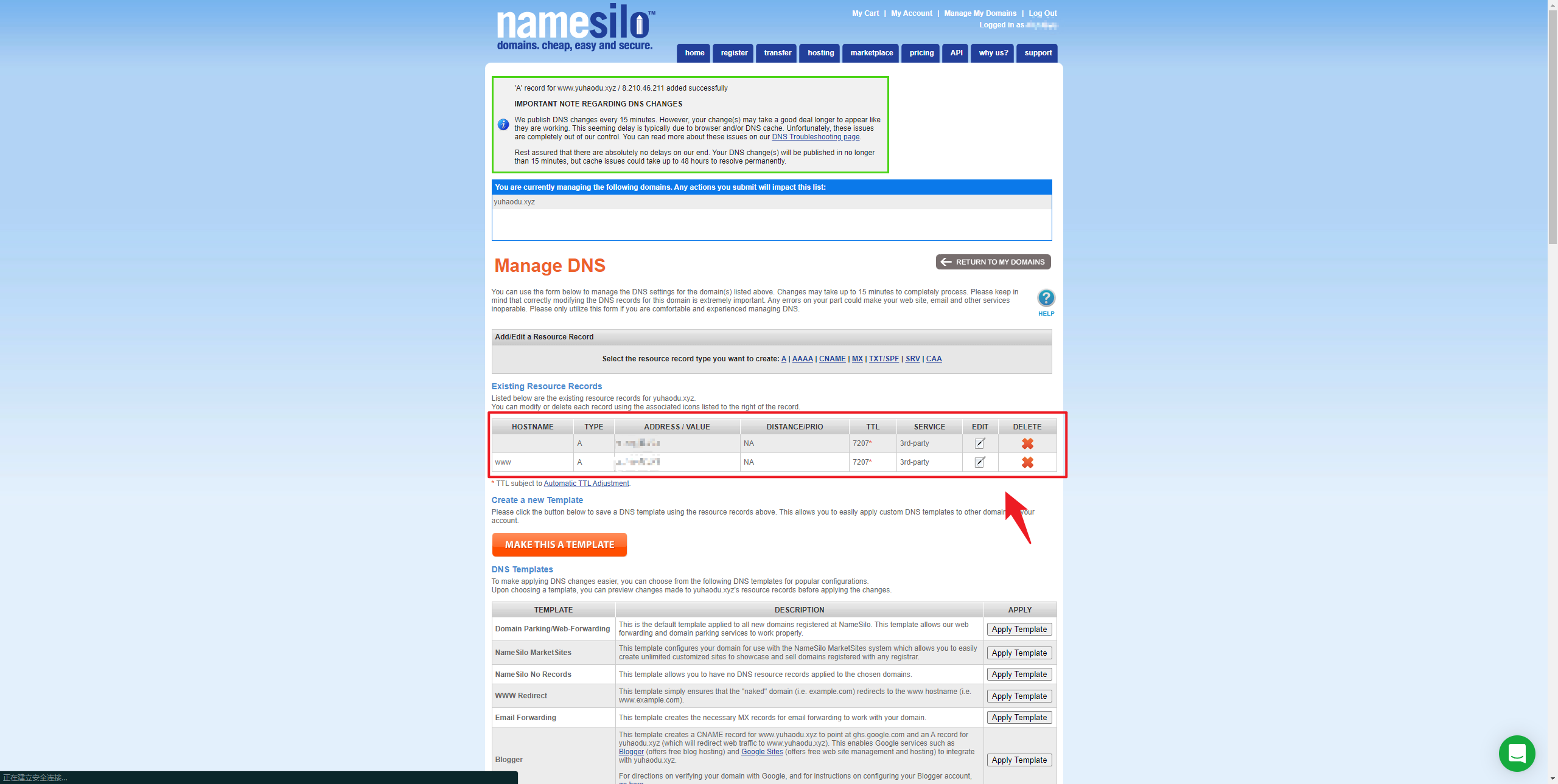
8. 等待,解析生效时间大概半小时-两小时,Ping IP/域名 查看是否生效
- https://ping.chinaz.com/
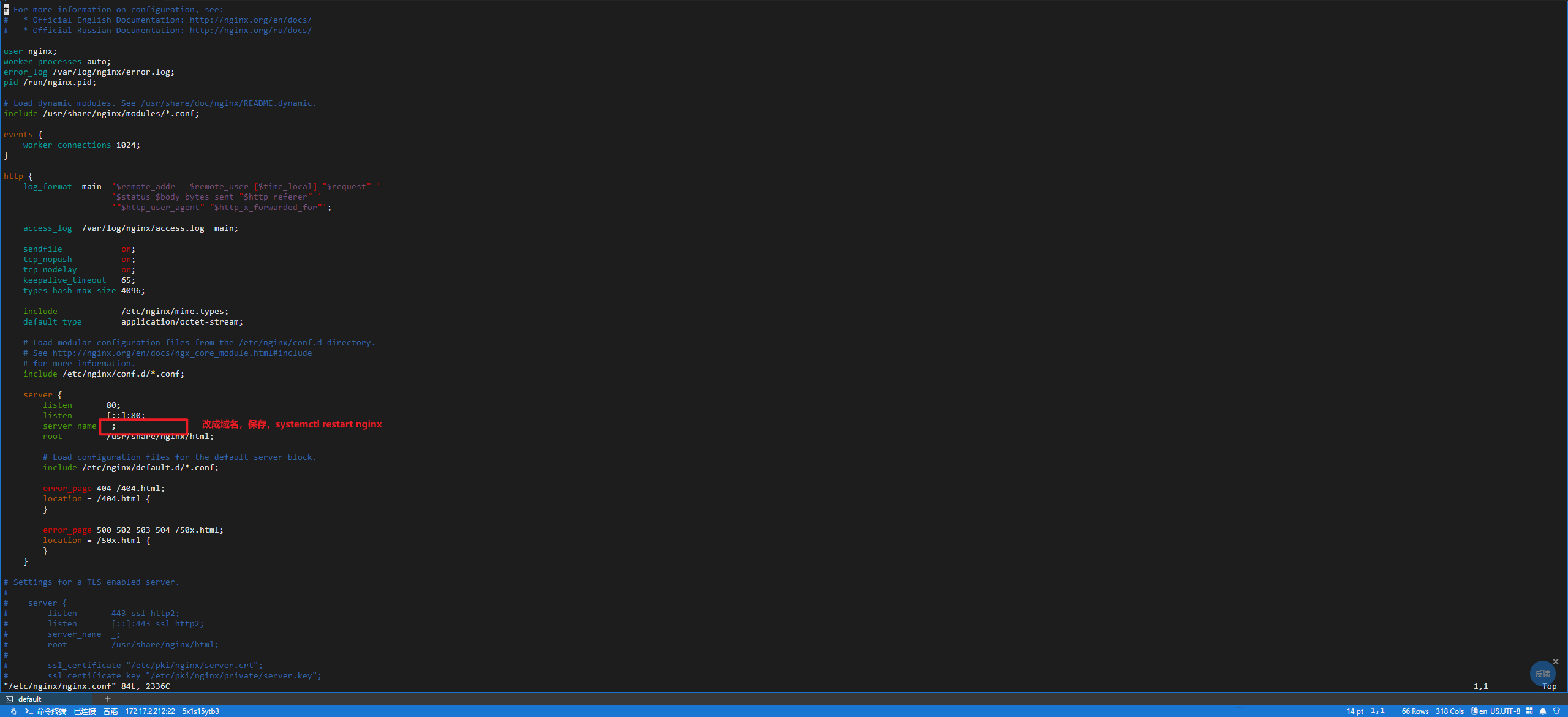
9. 修改nginx server,查看域名是否能访问Nginx欢迎页 (可以不修改先测试看看,Ubuntu好像不需要)

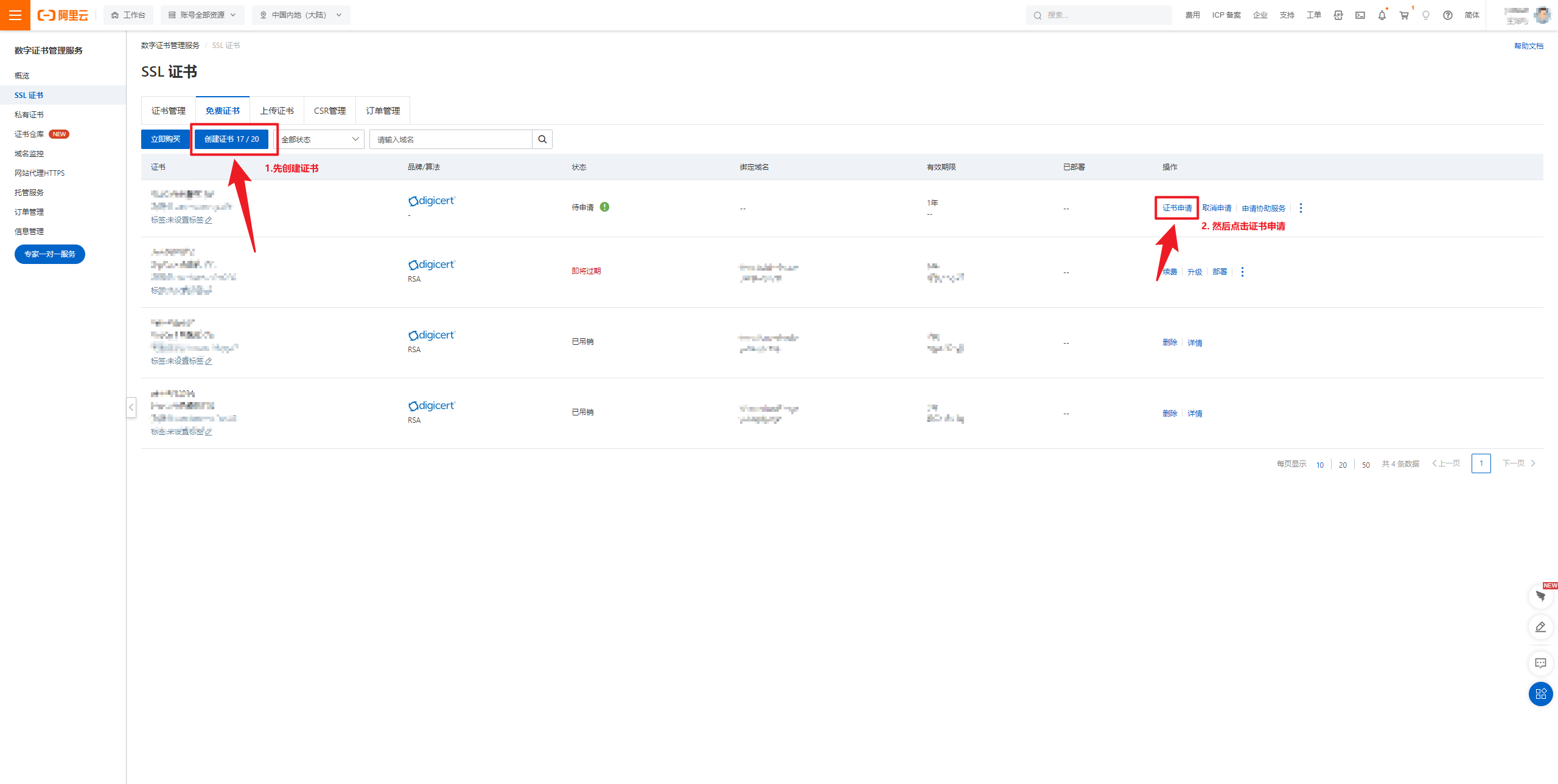
<3> 为域名申请一个阿里云SSL证书
1. 创建一个证书,并点击证书申请
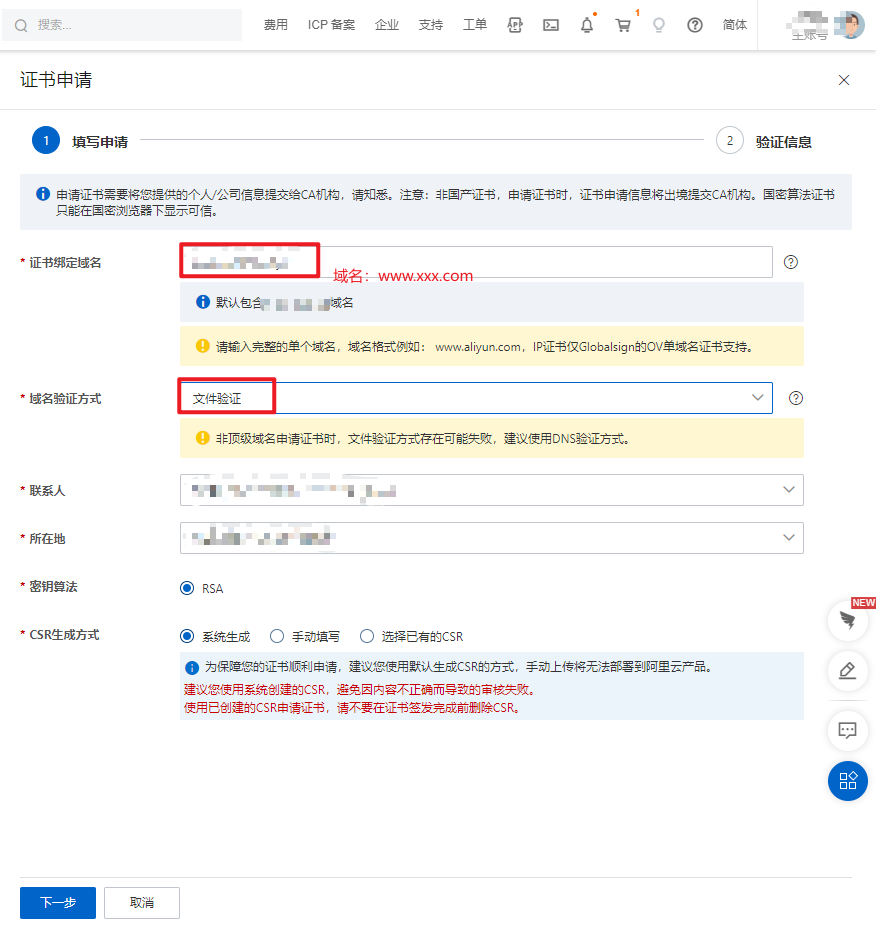
2. 填写信息
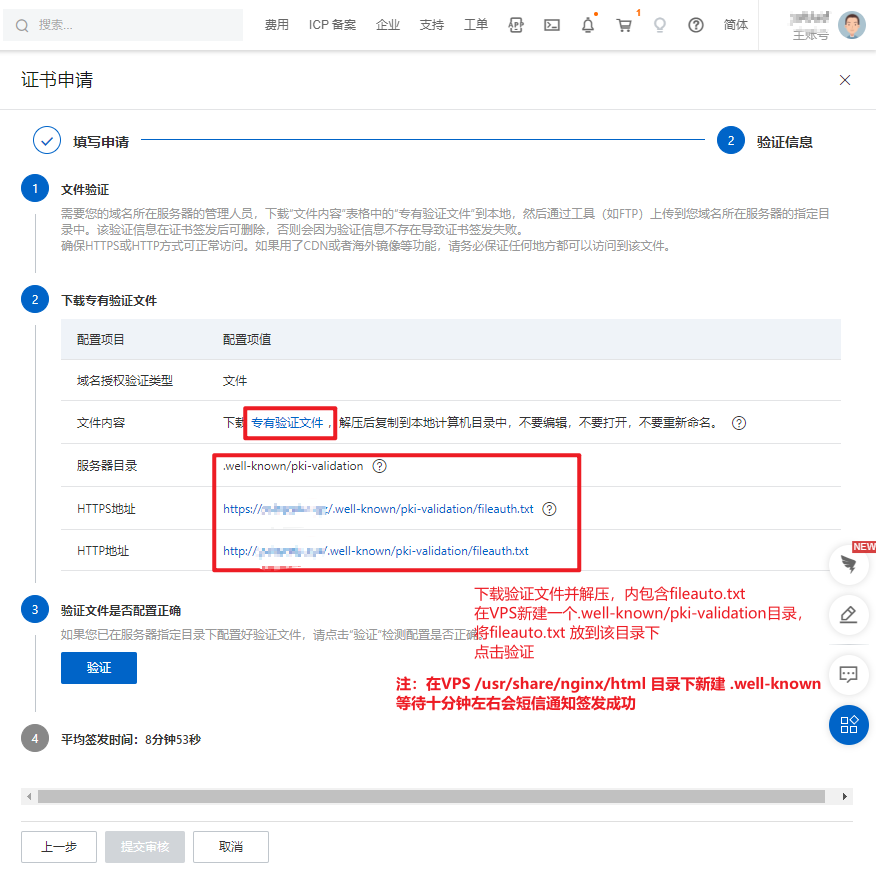
3. 下载验证文件到VPS中,等待签发
- Ununtu 应该是在/var/www/html 目录下, Google一下如果报错
4. 签发成功后下载cert证书
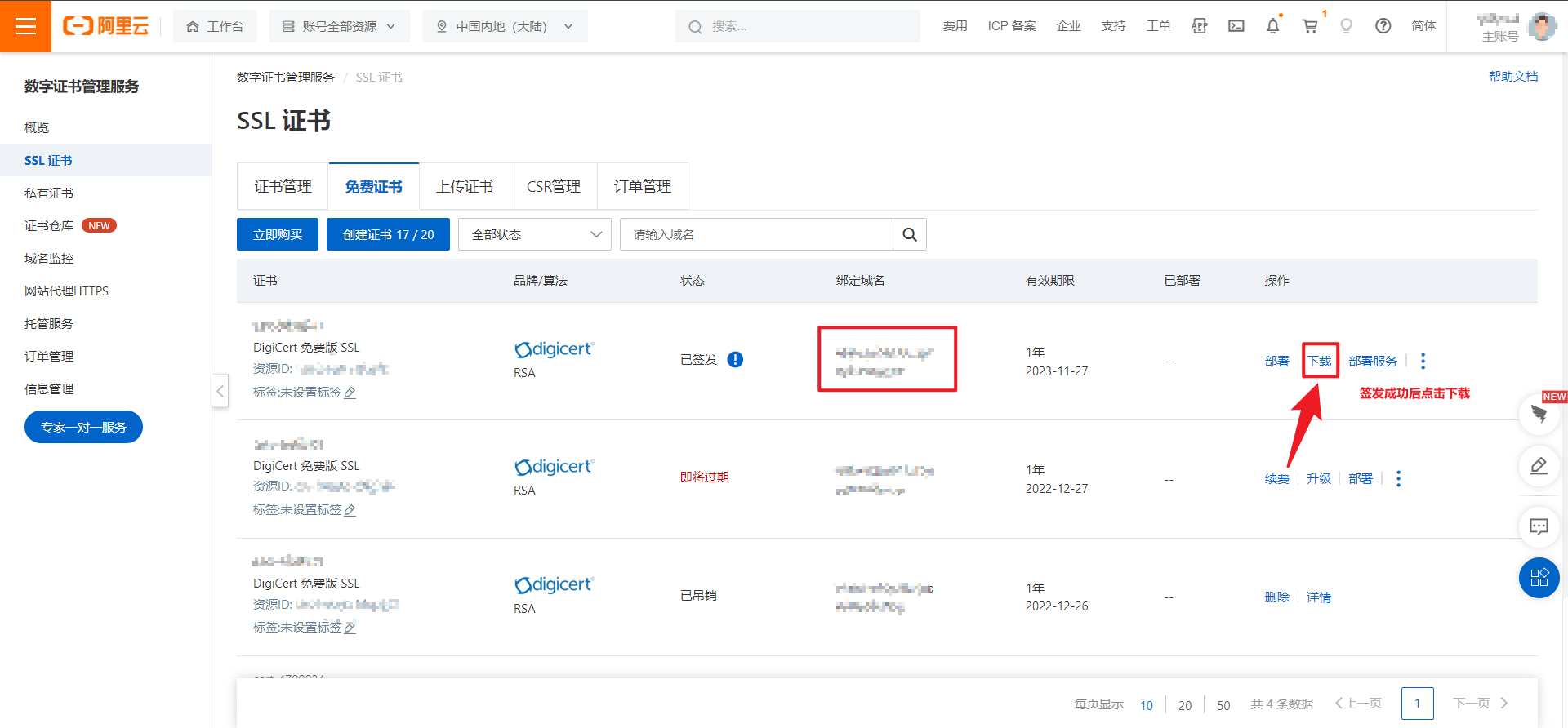
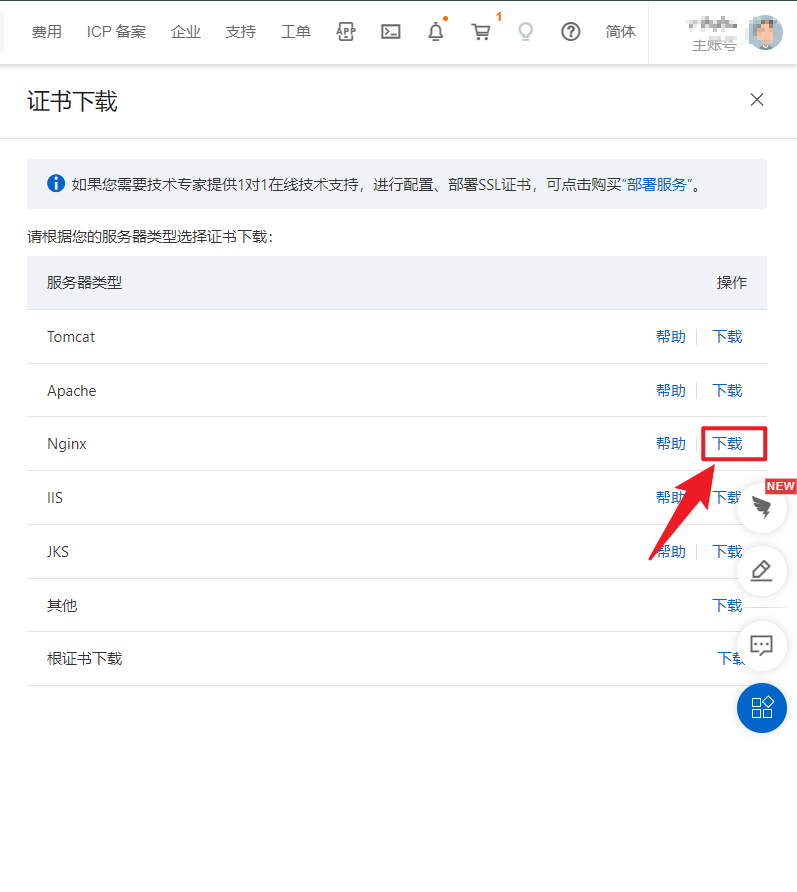
- 将证书 (123456_www.xxx.com_nginx.zip)传到VPS /cert中并解压, 可通过https://github.com/DuYooho/VPS_transfer
<4> VPS安装Xray
# https://github.com/XTLS/Xray-install
bash -c "$(curl -L https://github.com/XTLS/Xray-install/raw/main/install-release.sh)" @ install
可执行文件xray在 /usr/local/bin 目录下,配置文件位于 /usr/local/etc/xray目录内
- 将 https://github.com/DuYooho/VPS_transfer 中的config_server.json 放到
/usr/local/etc/xray/config.json- 这里用到的配置是 https://github.com/XTLS/Xray-examples/tree/main/VLESS-TCP-XTLS-WHATEVER VLESS+TCP+XTLS 部分only。
- 后续可以尝试一下其他的配置,这里websocket(ws)可以google一下,没有配置成功。
- 配置完毕后,可通过
systemctl start xray运行 xray,systemctl stop xray停止xray,systemctl restart xray重启,journalctl -xe --no-pager -u xray 查看运行日志。 - 最后,记得放行防火墙。如果是阿里云、腾讯云、AWS/GCP等大厂的服务器,还需要到网页后台的安全组放行端口。(阿里云不需要)
<5> 客户端配置